

How to Check Internet Speed and Get Accurate Results
October 29, 2026
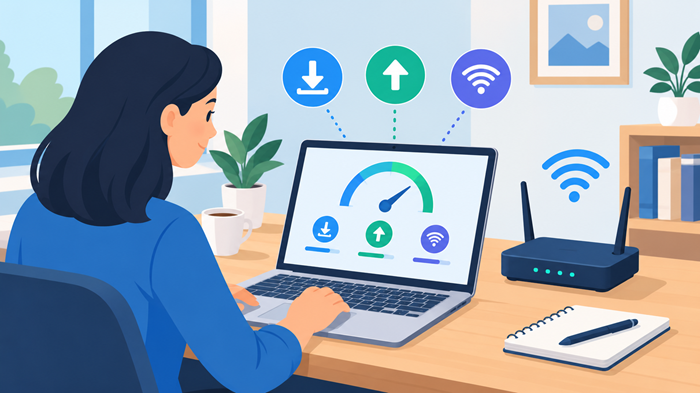
Knowing how your internet connection performs can help you avoid buffering, slow downloads, lag during video calls, and frustrating interruptions while browsing. Learning how to run an internet speed test is a simple way to understand whether your connection delivers the performance you need for work, entertainment, gaming, and everyday online activities.
JNA makes this process straightforward with its own speed-testing option. Users can navigate to Home → TV & Internet Service Providers and find the speed test option in the menu to evaluate their connection and better understand its performance.
Key Takeaways
-
Run an internet speed test to measure download speed, upload speed, and latency.
-
Test your connection under consistent conditions for more reliable results.
-
Compare measured performance with your internet plan’s advertised speeds.
-
Use the results to identify possible connection problems and make informed service decisions.
What Is an Internet Speed Test?
An internet speed test measures how quickly data travels between your device and a testing server. It provides useful information about the performance of your connection and whether it can support your daily online activities.
JNA provides a convenient way to evaluate your connection through its speed test tool. Rather than relying on assumptions about your service, you can review measurable results and use them to investigate performance concerns.
An internet speed test typically reports three important measurements: download speed, upload speed, and latency. Some tools also provide jitter and other network performance details.
Why Should You Check Your Internet Speed?
Your connection may appear fast during simple browsing but struggle when several devices are active. Measuring its performance helps you understand what is happening instead of guessing at the cause.
An internet speed test is useful in several situations:
-
Slow website loading: Pages take longer than usual to open, and images load gradually.
-
Video buffering: Streaming services pause frequently or reduce video quality.
-
Unstable video calls: Meetings experience delays, frozen screens, or poor audio.
-
Online gaming issues: High latency creates noticeable delays between your actions and the game’s response.
-
Large file transfers: Uploads and downloads take longer than expected.
Testing your connection regularly also helps establish a performance baseline. When a problem appears, you can compare new measurements with previous results to see whether conditions have changed.
How to Check Internet Speed Using JNA
JNA offers a convenient way to evaluate your connection through its website. Follow these steps to get started.
Step 1: Visit the JNA website
Open your browser and visit JNA. Use a reliable device connected to the network you want to evaluate.
Step 2: Open the service providers section
Navigate to Home → TV & Internet Service Providers and locate the speed test option in the menu.
Step 3: Start the test
Open the speed-testing option and follow the instructions displayed on the page. Allow the measurement to finish without switching tabs or interrupting the process.
Step 4: Review your results
Note the download speed, upload speed, and latency. Run another measurement under similar conditions to check whether the results remain consistent.
For the clearest comparison, run an internet speed test more than once and record the results alongside your internet plan’s advertised performance.
How to Prepare for an Accurate Speed Test
The way you prepare your device can influence the measurements. A few simple adjustments can help produce more consistent results.
1. Pause downloads and streaming
Close applications that use substantial bandwidth, including video streaming platforms, cloud backups, large downloads, and online games. This reduces competition for available network capacity.
2. Connect directly to your router
A wired Ethernet connection generally provides a more stable measurement than Wi-Fi because it avoids wireless interference. Use a suitable Ethernet cable and compatible network port.
When testing Wi-Fi, stay reasonably close to the router and avoid physical obstacles that may weaken the signal.
3. Disconnect unnecessary devices
Smart TVs, tablets, phones, and other connected equipment may consume bandwidth in the background. Temporarily pausing their network activity can make it easier to assess the connection available to your test device.
4. Choose a reliable testing environment
Use an updated browser and avoid running multiple tests simultaneously. Network congestion, server distance, and temporary service disruptions can influence the outcome.
5. Repeat the measurement
A single result is only a snapshot. Run an internet speed test at different times, particularly during periods when the connection usually slows down. A consistent pattern is more useful than an isolated measurement.
Understanding Your Internet Speed Test Results
Once the test finishes, focus on the measurements that explain how your connection behaves.
Download speed
Download speed measures how quickly data reaches your device. It affects webpage loading, video streaming, downloading files, and receiving content during online meetings.
It is generally measured in megabits per second (Mbps). Higher download capacity can support more demanding online activities and multiple users, although the actual experience also depends on the service and application.
Upload speed
Upload speed measures how quickly your device sends data to the internet. It matters when uploading documents, backing up files, sharing videos, streaming live content, and participating in video calls.
A connection with strong download performance but limited upload capacity may still struggle with work-related tasks that involve frequent file sharing.
Latency or ping
Latency measures the time data takes to travel between your device and a server, usually reported in milliseconds (ms). Lower latency is generally preferable for interactive activities such as online gaming and real-time conversations.
A fast connection can still feel unresponsive when latency is high.
Jitter and packet loss
Jitter describes variations in latency, while packet loss occurs when data packets fail to reach their destination. Both can affect call quality, gaming, and other real-time applications.
An internet speed test that includes these measurements can provide a more complete picture of connection quality.
What Is a Good Internet Speed for Everyday Use?
The right connection depends on how many people use it, which applications they run, and whether several activities happen simultaneously.
| Online Activity | General Download Speed Guidance |
| Email and basic browsing | 1–5 Mbps |
| Standard-definition streaming | 3–5 Mbps |
| HD video streaming | 5–10 Mbps |
| 4K video streaming | 15–25 Mbps |
| Video calls | 5–10 Mbps |
| Online gaming | 10–25 Mbps or more |
These are approximate planning ranges, not guarantees. Actual requirements vary by platform, video quality, upload needs, and the number of connected devices.
A household with multiple people streaming videos, attending meetings, and downloading files will generally need more capacity than a single user who mainly browses websites.
When you check internet speed, consider both the number of users and their activities before deciding whether your current plan is sufficient.
What to Do When Your Internet Speed Is Slow
A disappointing result does not automatically mean your provider is responsible. Start with a few practical checks before considering a plan change.
Restart your modem and router
Restarting network equipment can resolve temporary connection problems. Follow the manufacturer’s instructions and allow the devices to reconnect completely before testing again.
Improve your Wi-Fi signal
Place your router in a central, open location away from thick walls and major sources of interference. Adjusting its position or using a suitable mesh system may improve coverage in larger homes.
Check connected devices and background activity
Cloud synchronization, automatic updates, and simultaneous streaming can consume available capacity. Review network usage and pause unnecessary tasks during important calls or downloads.
For additional guidance, explore troubleshooting common internet connection issues.
You can also explore practical methods for improving internet speed without upgrading your plan. These adjustments may improve performance without adding to your monthly bill.
Compare your results with your plan
Run an internet speed test using a wired connection and compare the result with your provider’s advertised speeds. Check the plan terms carefully because advertised maximum speeds, typical performance, and guaranteed minimums can differ.
Repeatedly low measurements under controlled conditions may justify contacting your provider.
Review available providers and plans
Persistent problems may call for a different service or package. Explore internet providers in my area to research potential providers and compare the services available at your address.
For budget-conscious households, explore information about affordable internet options for low-income families. Eligibility, pricing, and availability depend on the specific program and location.
How Often Should You Test Your Connection?
There is no need to measure performance constantly. A practical schedule depends on your usage and whether you experience recurring problems.
-
During setup: Measure performance after installing a new connection or router.
-
When problems occur: Take measurements during slowdowns and compare them with normal conditions.
-
After troubleshooting: Repeat the test to see whether an adjustment improved performance.
-
Periodically: Record results occasionally to identify longer-term changes.
To test my internet speed effectively, use the same device and similar testing conditions whenever possible. Keep a simple record of the date, connection type, and results.
If the measurements remain inconsistent, investigate whether the problem affects one device, the entire home network, or the provider’s service. This distinction can help you decide what to do next.
How JNA Helps Users Make Better Internet Decisions
JNA helps users explore TV and internet service information, compare available options, and evaluate their connection through its website’s speed test option.
Our resources can help people understand service performance, research providers, and identify practical ways to address connectivity concerns. Checking results before selecting a new plan can also help users make decisions based on their actual needs rather than advertised numbers alone.
JNA provides TV and Internet packages for residential, business, and mobile customers. We also offers affordable digital marketing services, giving businesses another way to explore support for their online presence alongside their connectivity needs.
As technology develops, the future of internet service will continue to influence how households and businesses connect, work, communicate, and access digital entertainment.
Understanding your connection today puts you in a better position to evaluate new services as they become available.
Frequently Asked Questions
1. How do I check my internet connection speed?
Visit JNA.org, navigate to Home → TV & Internet Service Providers, and select the speed test option from the menu.
2. Why does my measured speed differ from my plan?
Network congestion, Wi-Fi interference, device limitations, server distance, and background activity can affect measured performance.
3. Is Wi-Fi or Ethernet better for testing?
Ethernet generally provides a more stable measurement because it avoids wireless interference and signal-strength fluctuations.
4. What is the difference between download and upload speed?
Download speed measures incoming data, while upload speed measures data sent from your device to the internet.
5. Should I upgrade my internet plan after a slow result?
Not immediately; repeat the measurement, troubleshoot your network, and compare consistent results with your plan before considering an upgrade.